
Canvas: Importing Amplify content (Deep linking)
As a teacher, how do I import content from Amplify to Canvas?
These steps must be completed after your district administrator has completed setup for the Amplify Learning Tools Interoperability® (LTI®) version 1.3 app for Canvas. If you aren’t sure if this has happened, check with your district administrator.
This feature is currently available for Amplify Desmos Math and CKLA 3rd Edition.
Step 1: Adding the Amplify app
Step 2: Selecting content deep links
Step 3: Linking your Canvas and Amplify courses
Step 4: Assigning content within Amplify Classroom
Step 5: Publishing content in Canvas
Step 6: Importing additional content
Step 1: Adding the Amplify app
First, select the desired course in Canvas.
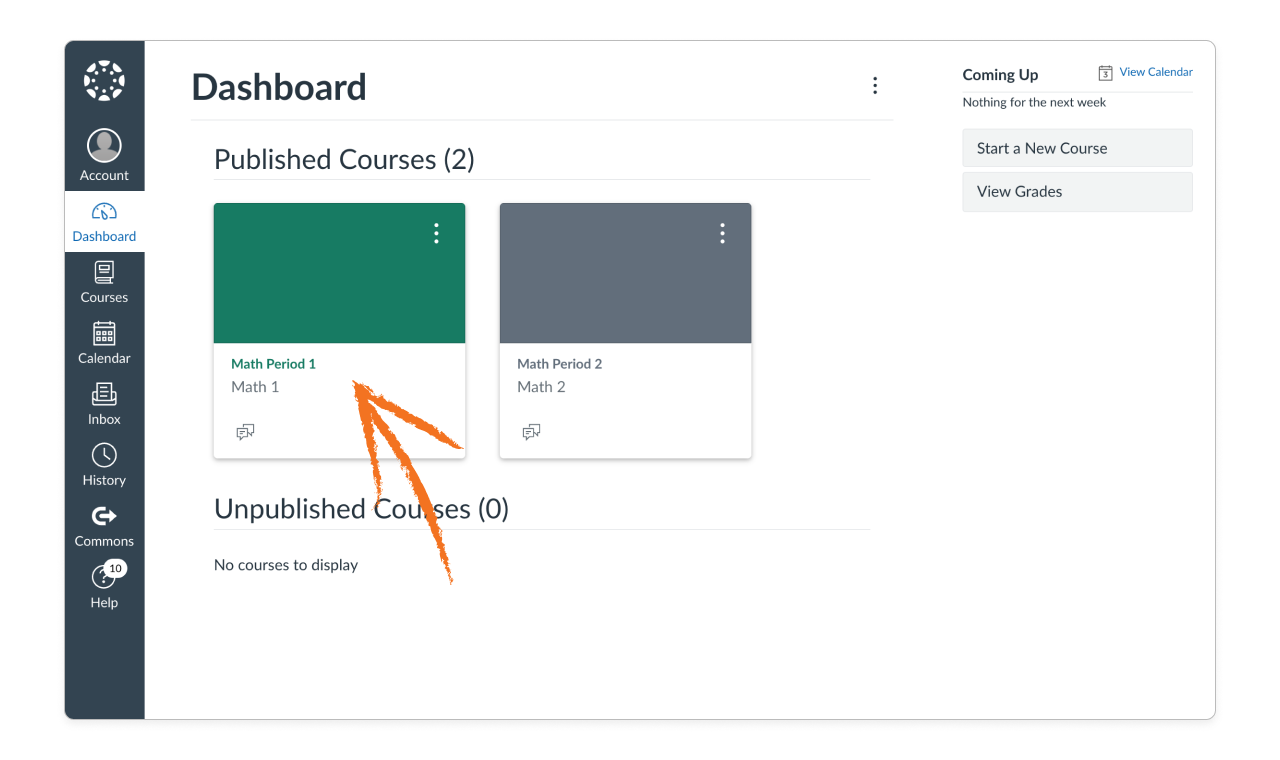
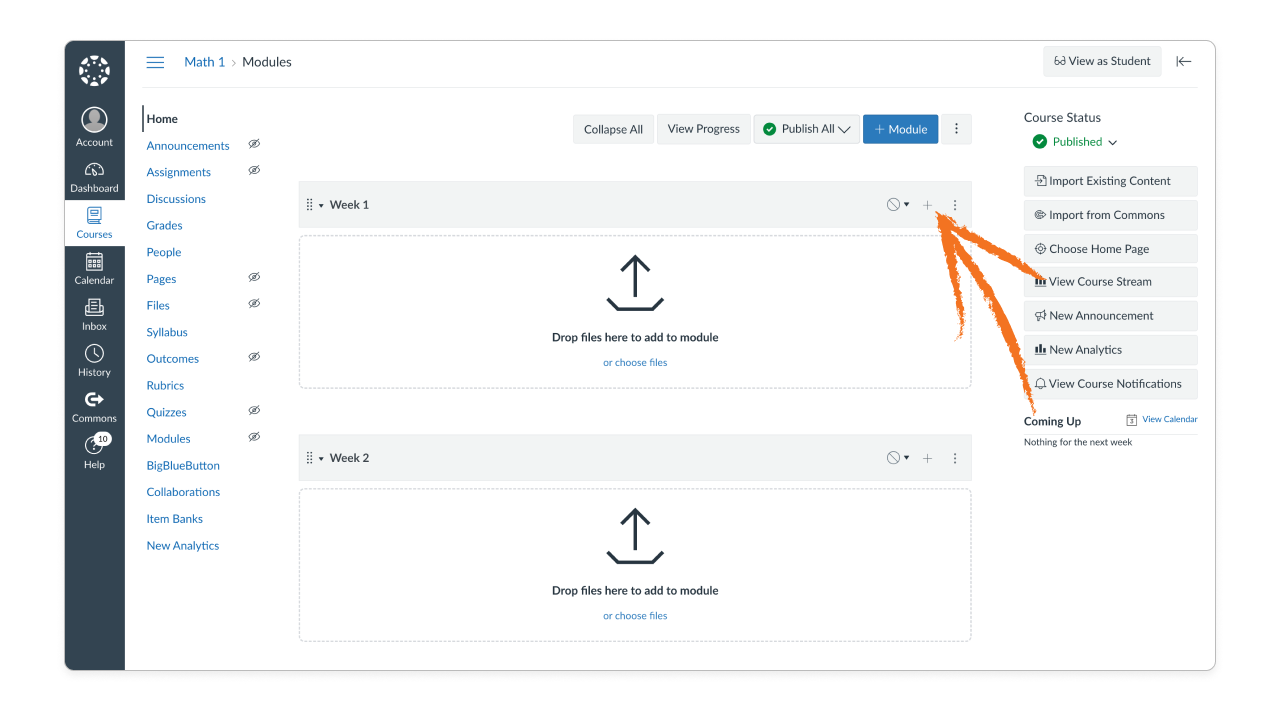
Next, in the Canvas course, click the + sign within a module header to add new content to the module.
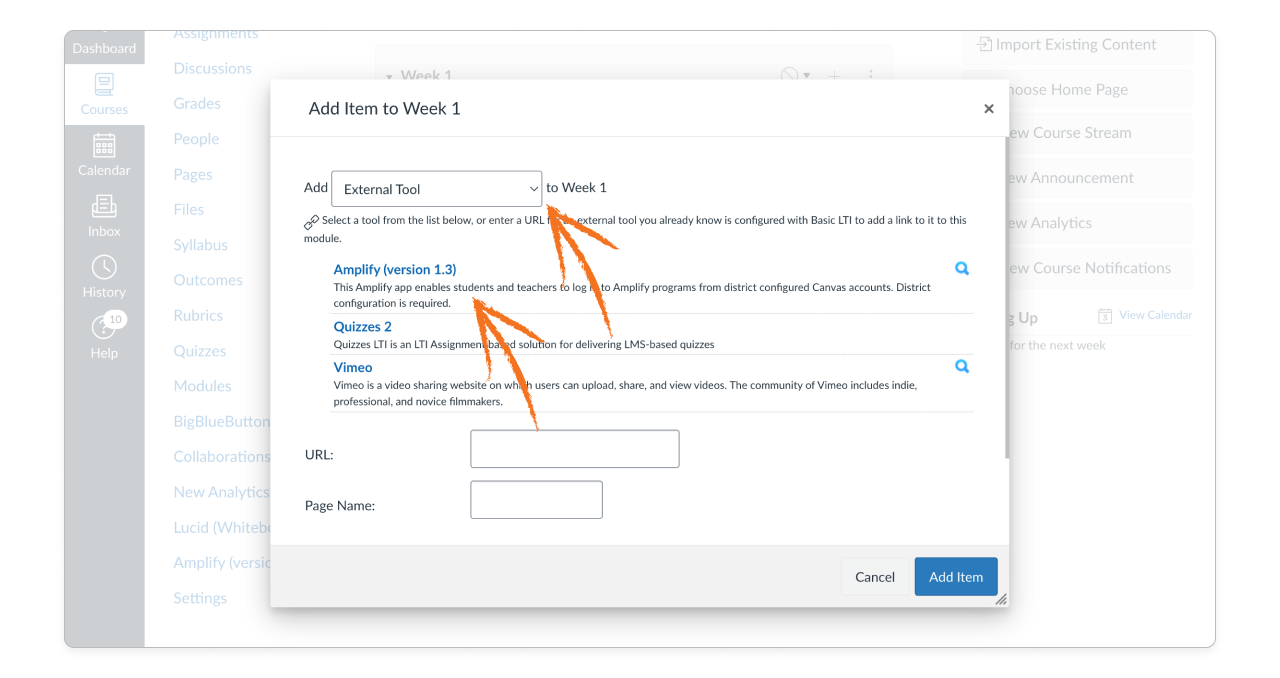
Then, choose the External Tool option from the menu, and click Amplify (version 1.3).
This launches the Amplify app.
Step 2: Selecting content deep links
Navigate the Amplify app to select the content you want to import.
The Curriculum Content tab contains Amplify content, as well as Resources which include links to Educator Home.
Educators who use Amplify ELA 6–8 and Amplify Science 6–8 will also see the Classwork app under Resources.
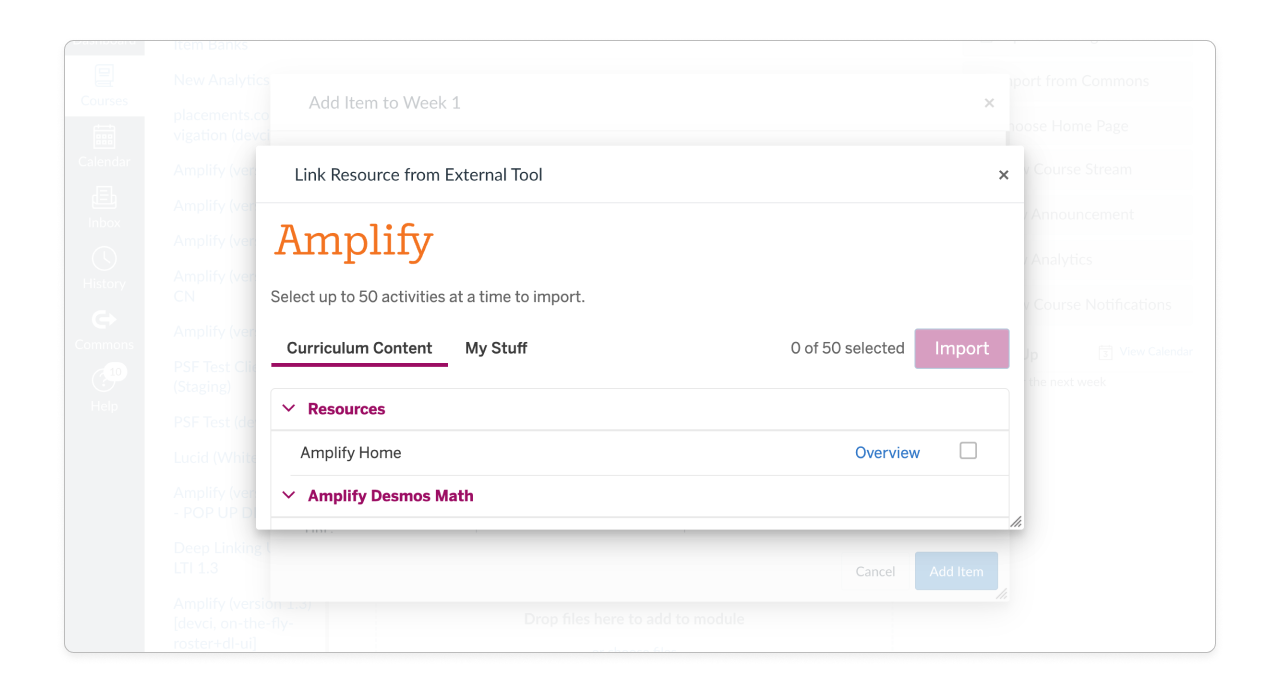
The My Stuff tab contains your custom content and collections, which can also be imported.
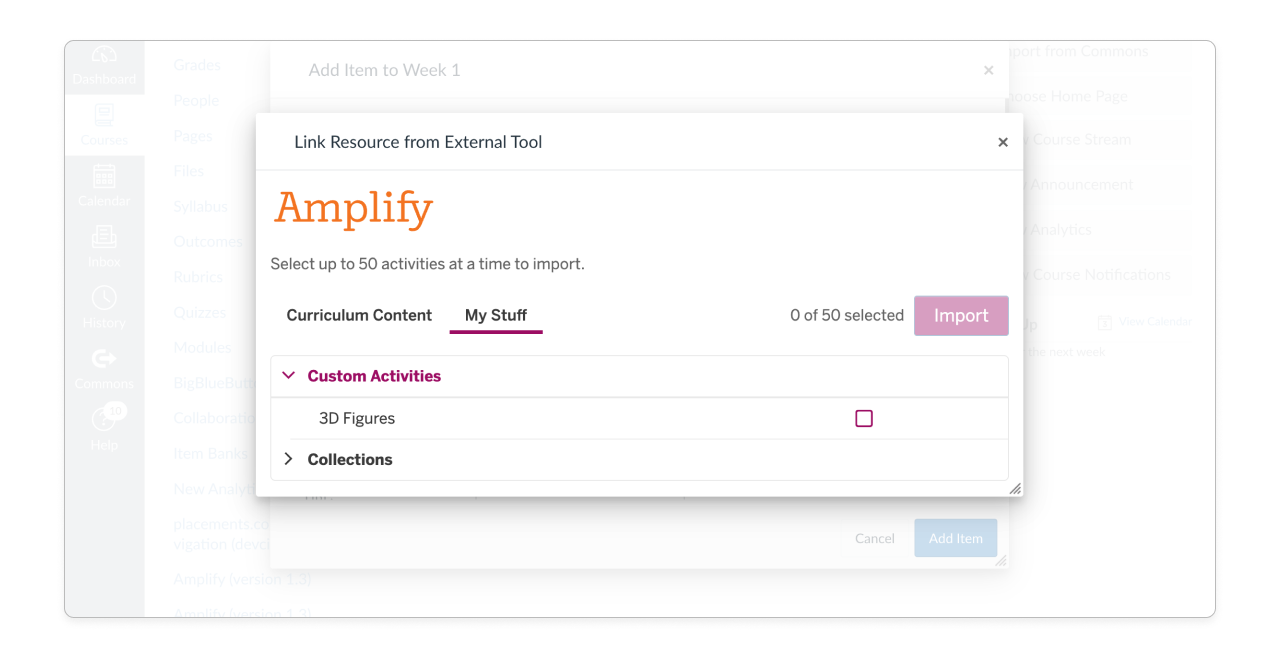
Select the boxes to the right of the links you want to import. The number of selected links updates in the upper-right corner as you do this.
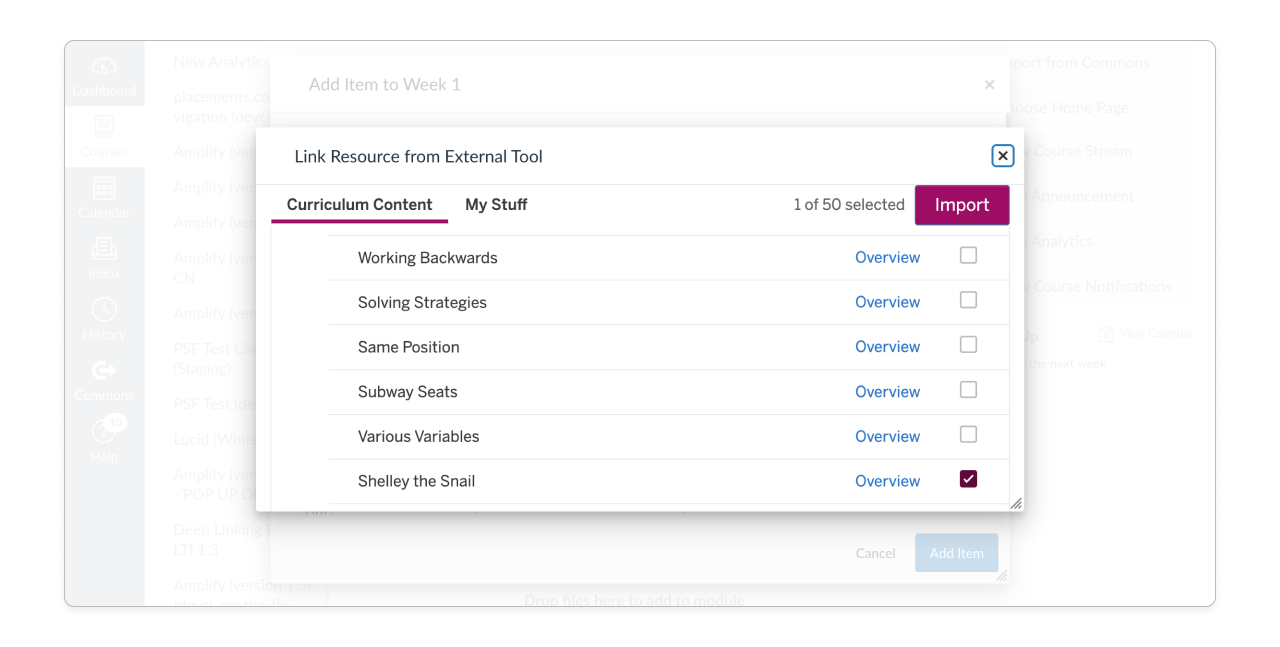
Click Import when you are ready to import the selected links.
All imported links display in the module in Canvas. You can organize and reorder links in Canvas.
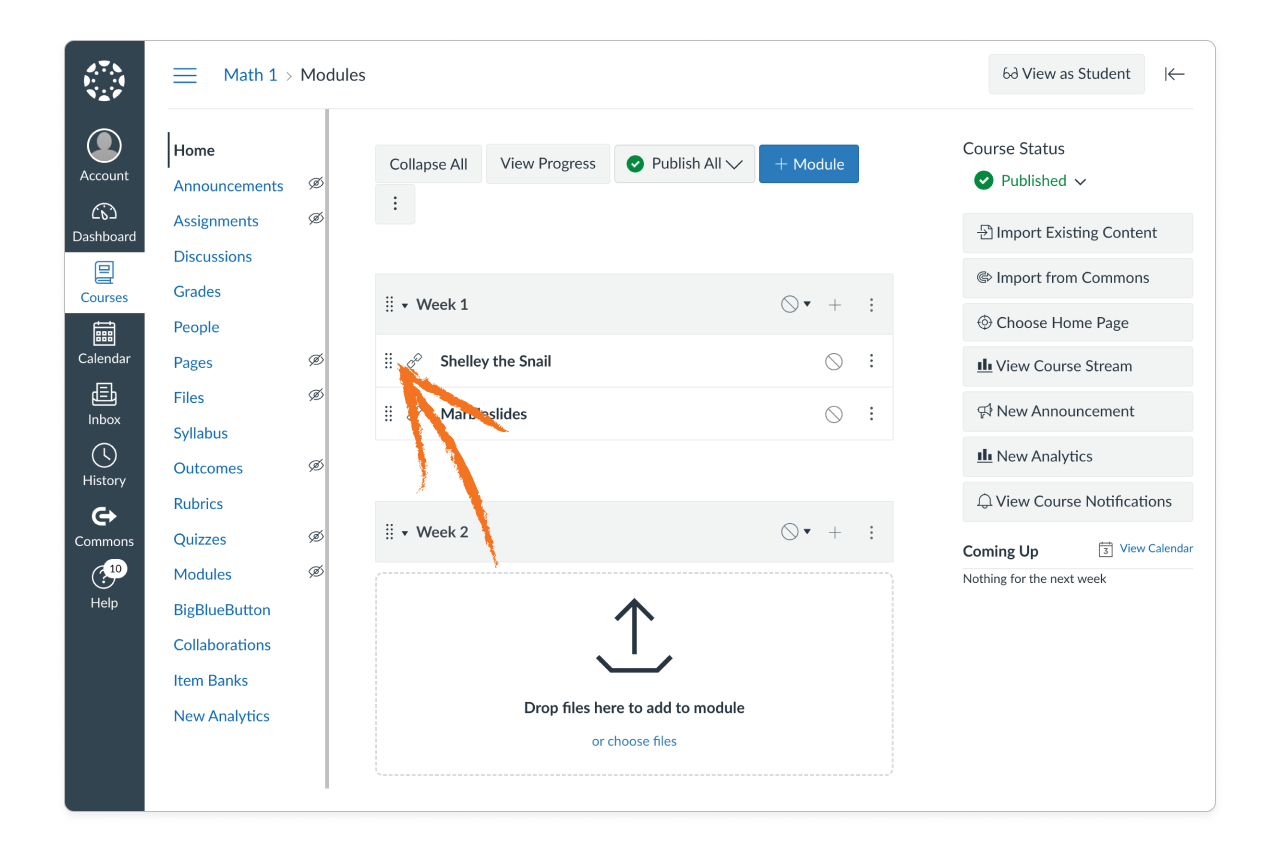
When you select only one link to import, you are also prompted to click Add Item.
Step 3: Linking your Canvas and Amplify courses
The first time you click an imported deep link from within Canvas, you are prompted to select the Amplify course corresponding to the course in Canvas.
This creates a link between the course in Canvas and the course in Amplify, which is required for students to access activities.
Please be careful when selecting which class to link. It is not currently possible to re-link a course. If you need to, please contact the customer care team.
This step only needs to be completed once for each course in Canvas.
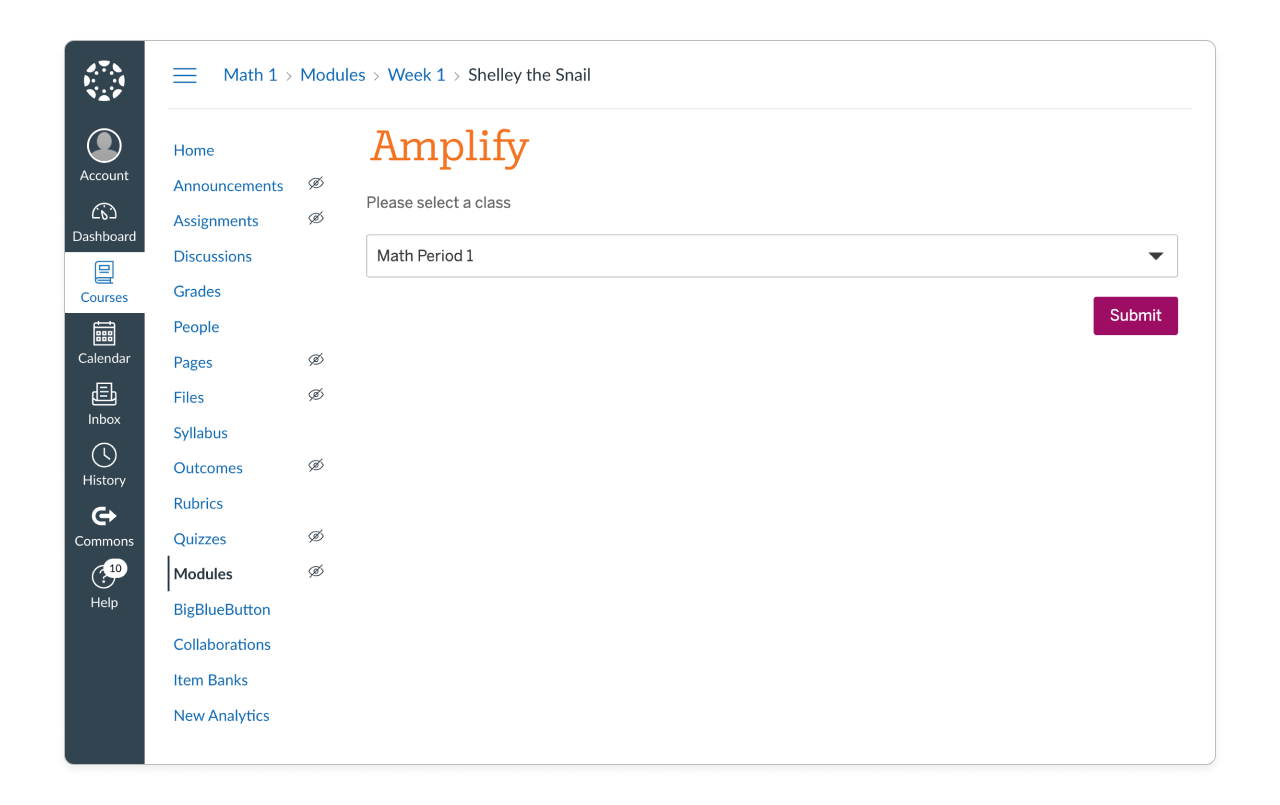
Now, when you click the imported links, the relevant content opens within the Canvas window.
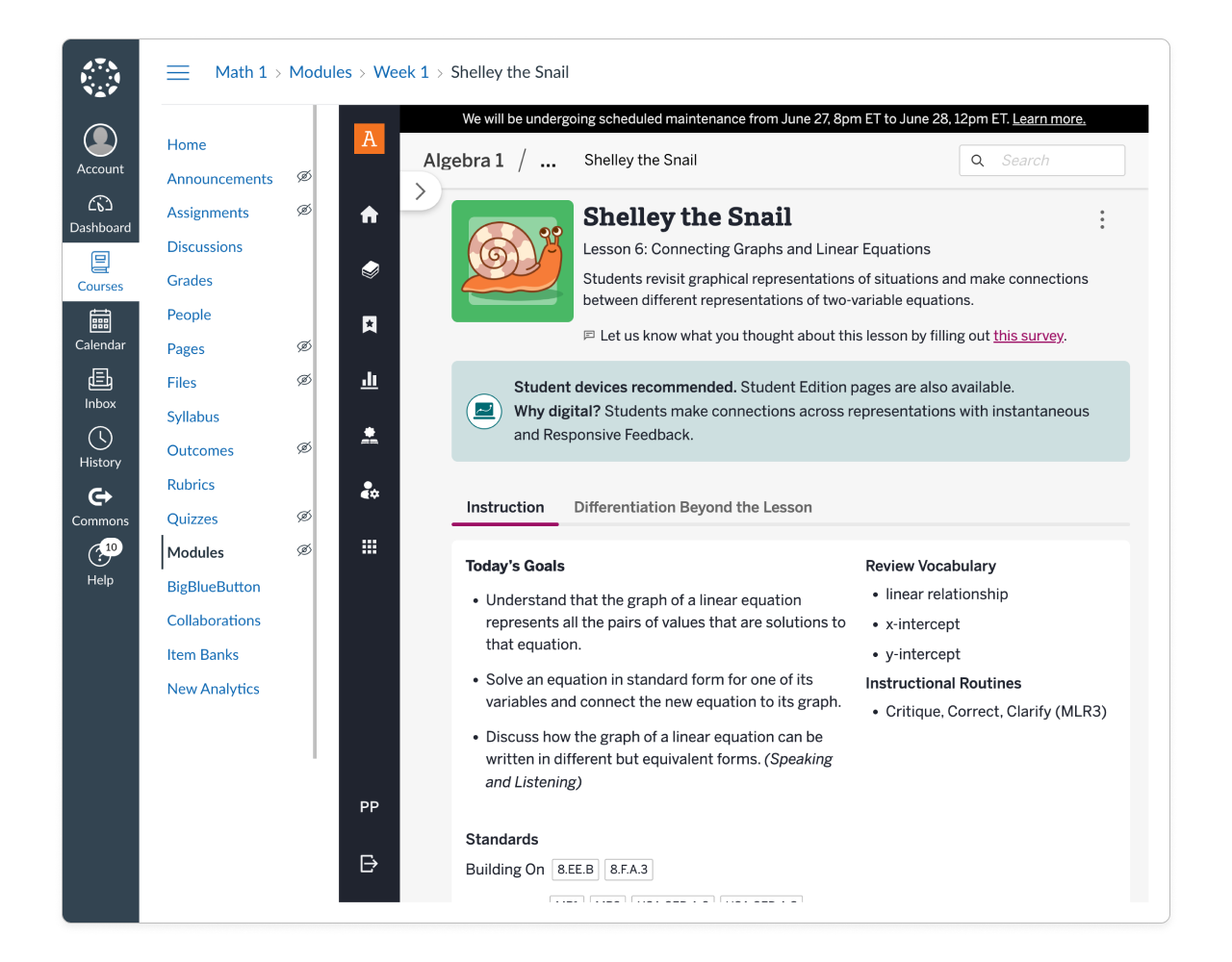
Step 4: Assigning content within Amplify Classroom
You must also assign activities within Amplify Classroom for students to access them. This can be done before or after you import a link, but it should be done before you publish the link to students in Canvas.
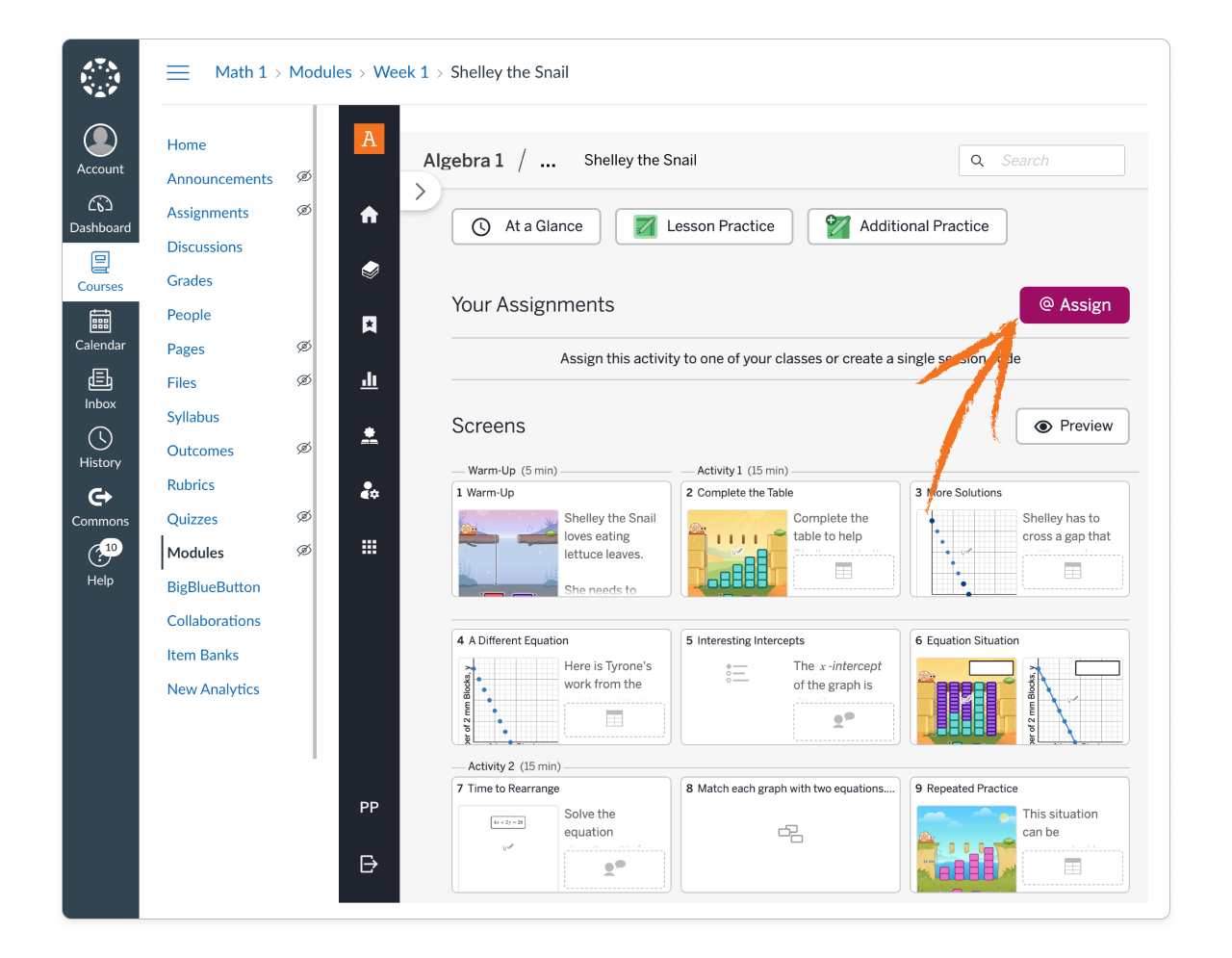
When viewing the activity in Amplify Classroom, click Assign to assign it to your students in Amplify. The activity must be assigned to all classes that will access it.
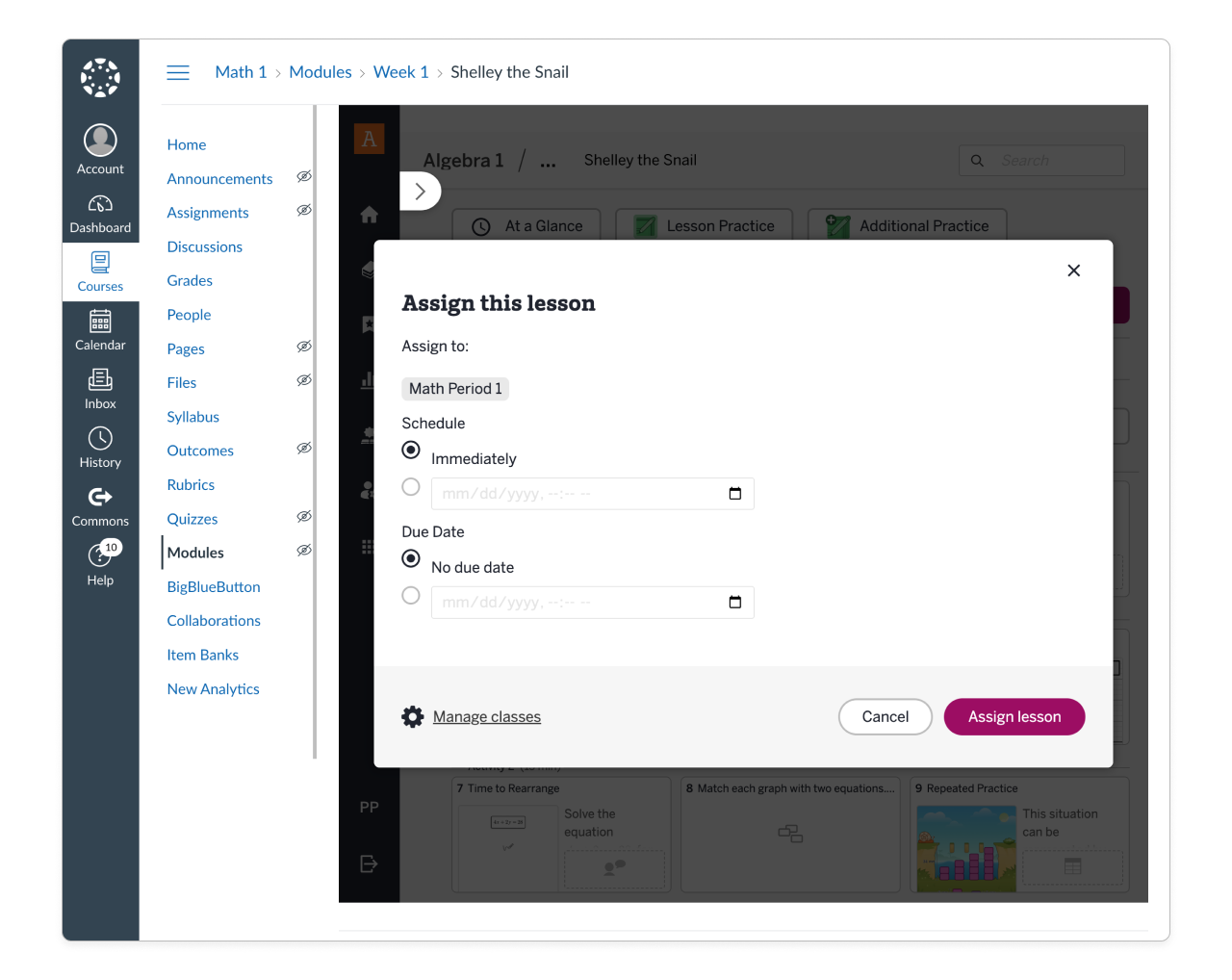
See more about assigning activities within the Amplify platform here.
Not all content can be assigned! Teacher-facing resources can also be imported, but students who click these links are directed to Student Home in Amplify Classroom. This applies to any activity without the Assign button in Amplify Classroom.
Step 5: Publishing content in Canvas
When you are ready, make the content available to your students by publishing the module and imported links in Canvas. Make sure you have assigned your activity to students within Amplify Classroom (Step 4) before publishing!
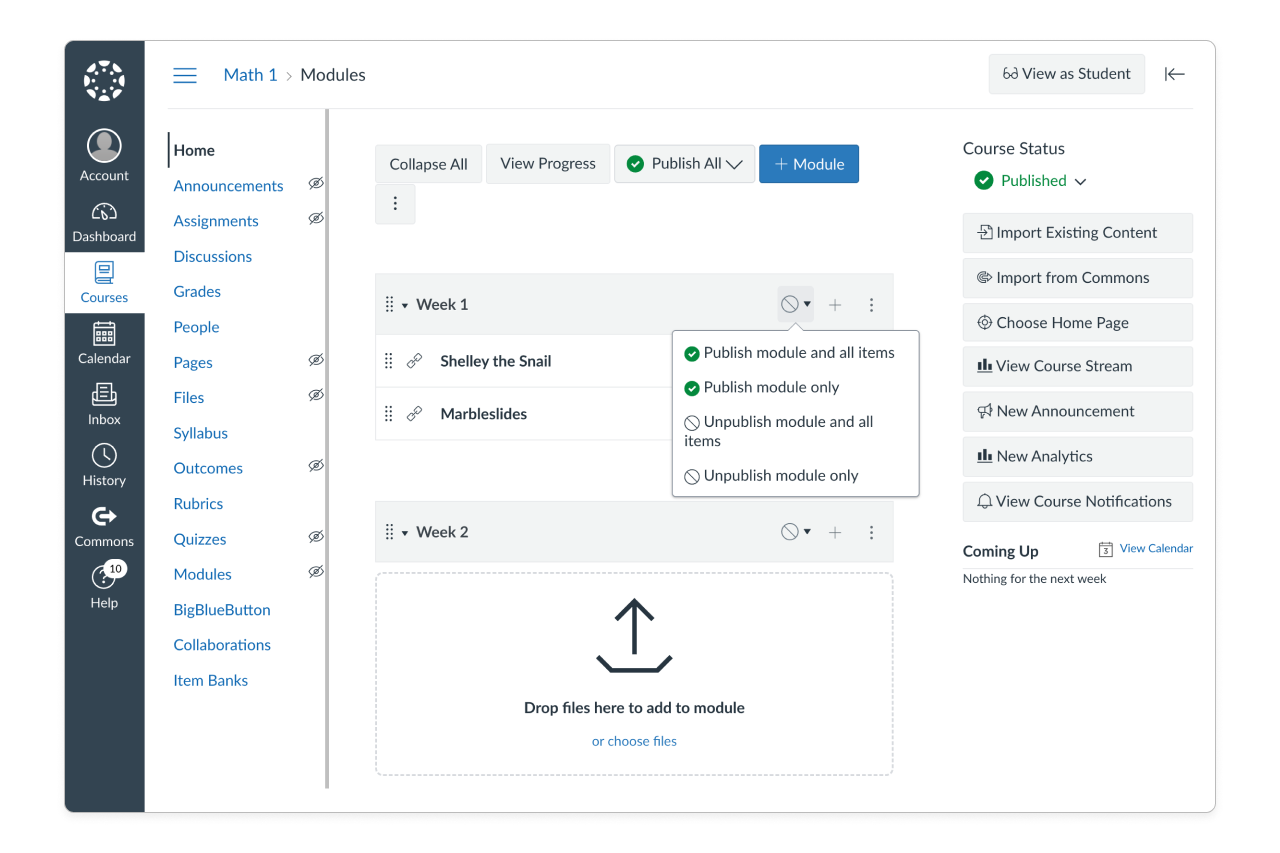
Step 6: Importing additional content
You can import additional content at any time by repeating steps 2, 4, and 5!
Student experience
Students can click any content links imported by their teacher.
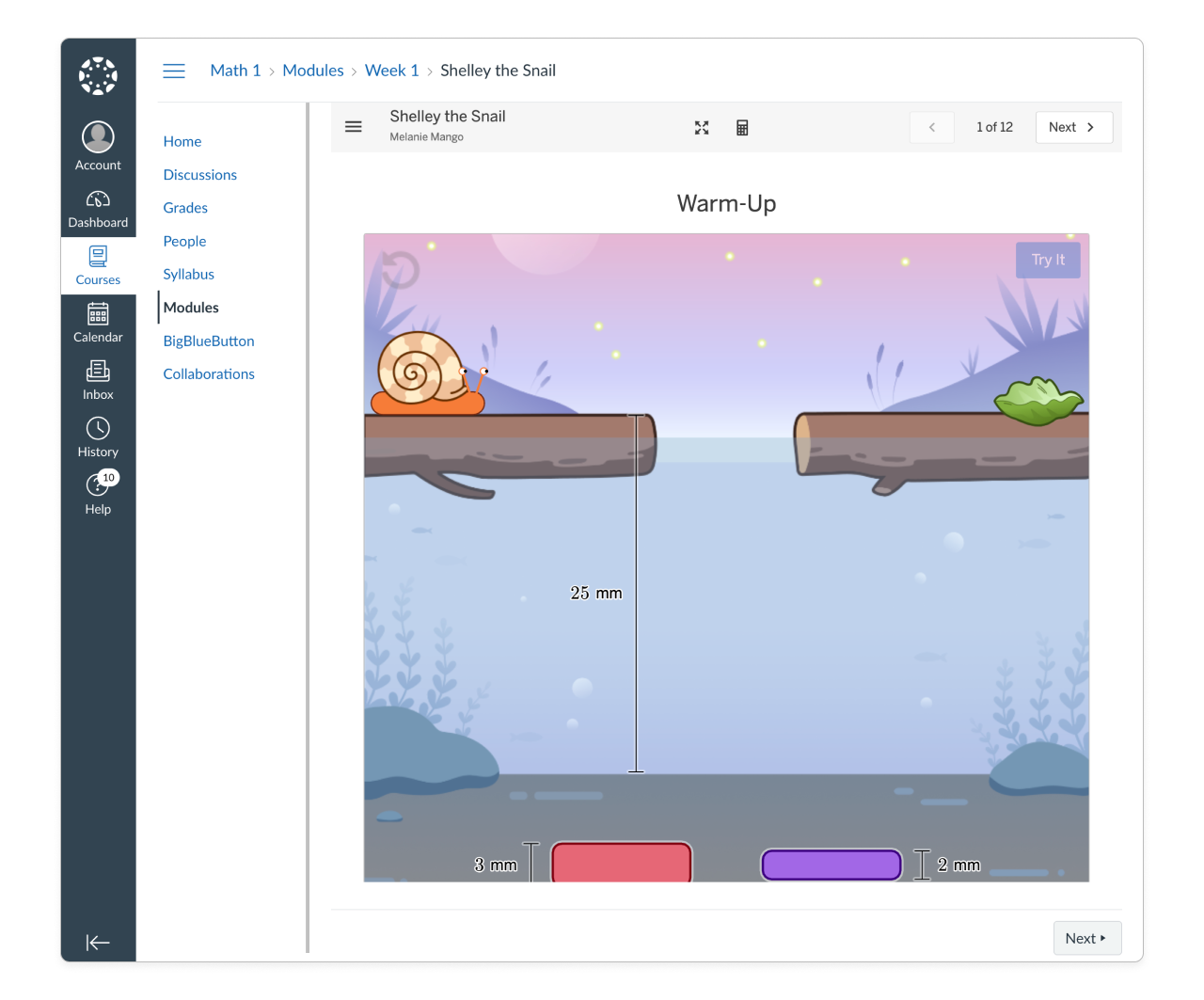
After clicking a link, students are directed to the activity in Amplify Classroom and are automatically logged in to Amplify!
Troubleshooting
Students receive an error message when clicking the link to imported content.
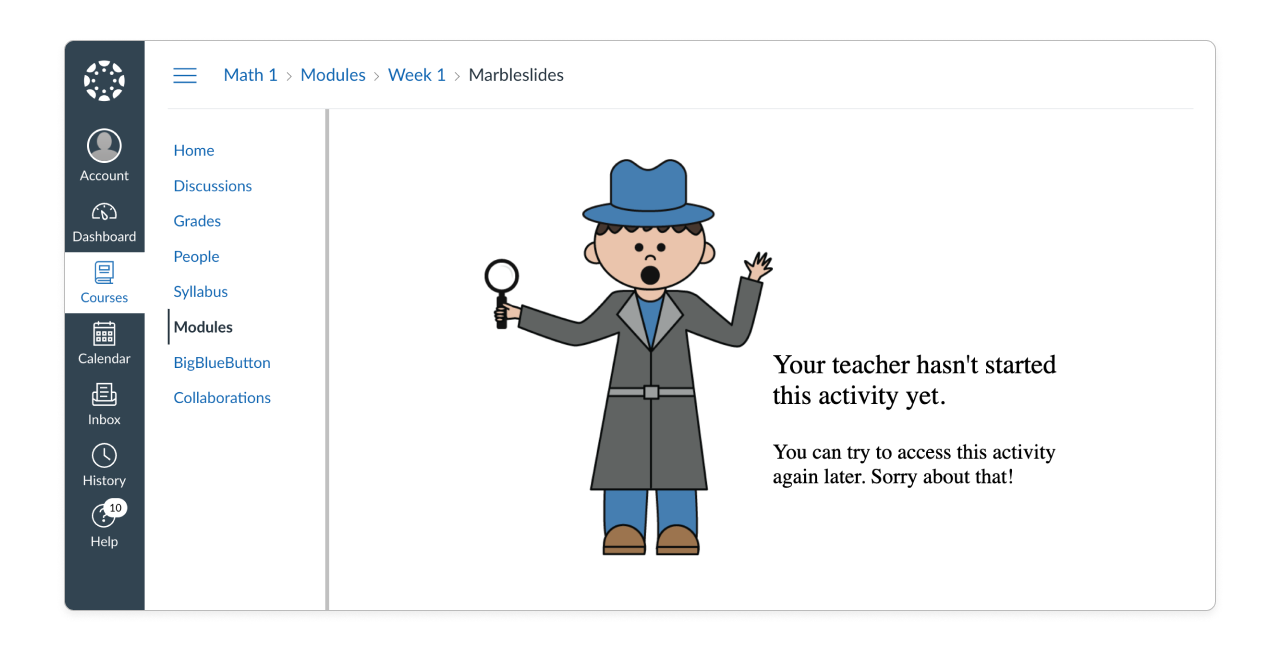
Please try the following if students are not able to access an imported link:
Make sure Step 4 (class linking) has been completed. If this has not yet been done, click the imported link to complete this step.
Make sure the content has been assigned to students within the Amplify platform (Step 5). This is required to make the Activity available to students.
Students are directed to Student Home when they click a link, instead of being directed to the linked content.
When students click a link to a teacher-only resource, they are directed to Student Home in Amplify Classroom.
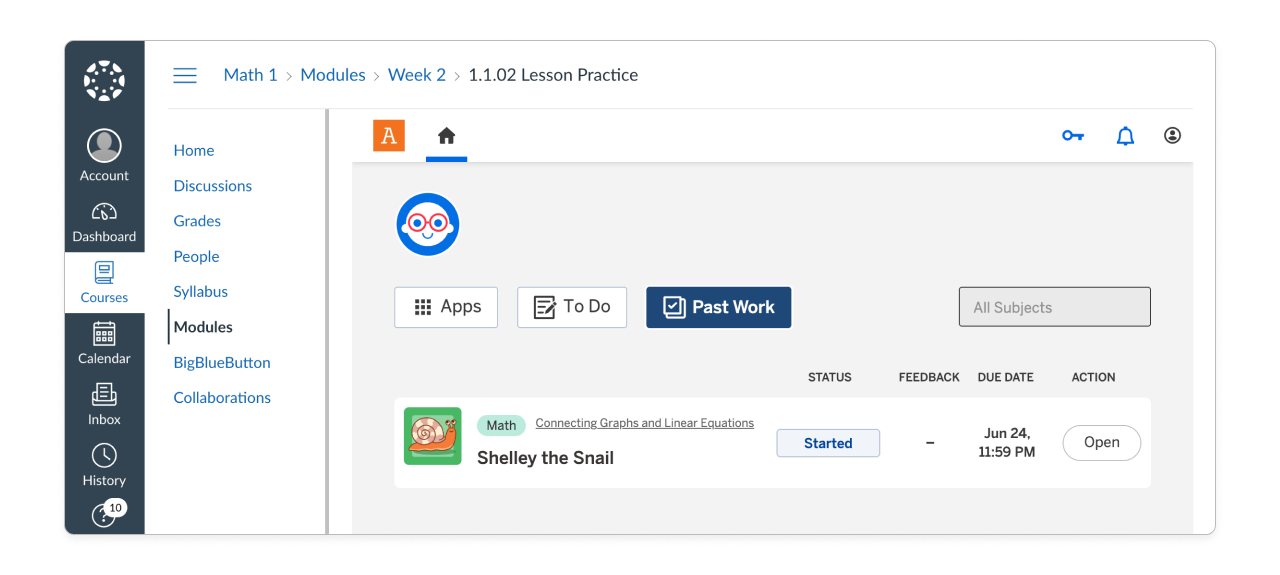
You can delete or unpublish this link in Canvas if you do not want to display it for students.
I selected the wrong Amplify class during the linking step.
If you select the wrong class when linking your Canvas and Amplify courses, please contact the customer care team.
FAQ
Can I import Amplify content as an Assignment in Canvas?
It is not currently possible to import Amplify content as an Assignment in Canvas. However, if you use grade sync for Amplify Desmos Math, assignments are automatically created when you sync grades.
Why do I see a top-level collection that does not appear to show anything underneath it when I click the arrow?
The presence of a caret next to collections might suggest that items are nested underneath. This is currently not the case for all collections, but we are working to improve this indicator in the future.