
Note: Microsoft Immersive Reader does not work inside Canvas quizzes.
Use the built-in Read Aloud feature in the Microsoft Edge browser
Using Browser Read Aloud (Microsoft Edge)Open your Canvas quiz in the Microsoft Edge browser.Click the three dots (ellipses) in the upper right-hand corner of the browser window. Select More Tools and then Read Aloud. Highlight the specific question or text you want heard, and use the playback controls to pause, play, or change the reading speed and voice
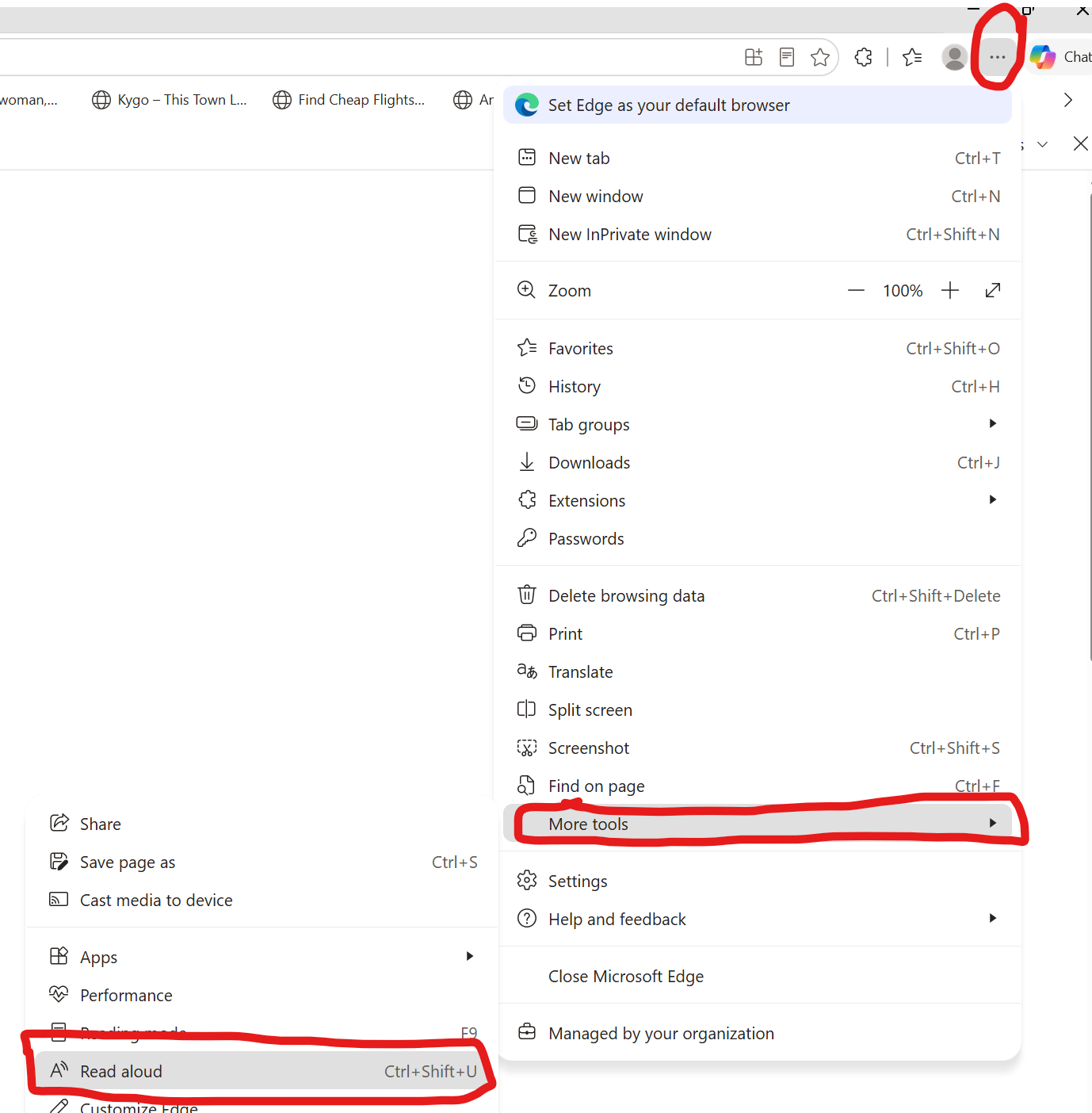
Microsoft Edge Read Aloud cannot automatically pause after every question. It is designed to read continuously down the page until it reaches the end or until you manually tell it to stop.
Work arounds to that issue:
Workaround 1:
Use the Keyboard Shortcut (Fastest)Instead of clicking the pause button with your mouse, keep one hand on your keyboard. Press Ctrl + Shift + U to start or pause the reading instantly.
You can let it read a question, hit the shortcut to pause while you answer, and hit it again to resume.
Workaround 2:
Highlight and Play (Most Precise)If you don't want Edge to automatically move on to the next question, control exactly what it reads.
Use your mouse to highlight only the specific question and its multiple-choice answers. Right-click the highlighted text and select Read Aloud selection.
Edge will read only what you highlighted and then stop completely. You can then move to the next question and repeat.