
Are you leaving SMSD? Do you have folders/files shared with your colleagues? You need to make someone else the owner prior to leaving or the files will be deleted upon your retirement/resignation.
Google Drive:
To transfer ownership of all files within a Google Drive folder, you must transfer ownership of each file individually, as folders cannot be transferred directly. The easiest method is to select all files inside the folder, click "Share," change the recipient to "Owner," and transfer. This works when transferring to another bubblers.us domain person.
Steps to transfer ownership of files/folders in Google:
- Open the Folder: Open the specific folder in Google Drive.
- Select All Files: Click the first file, hold down SHIFT, and click the last file to highlight everything.
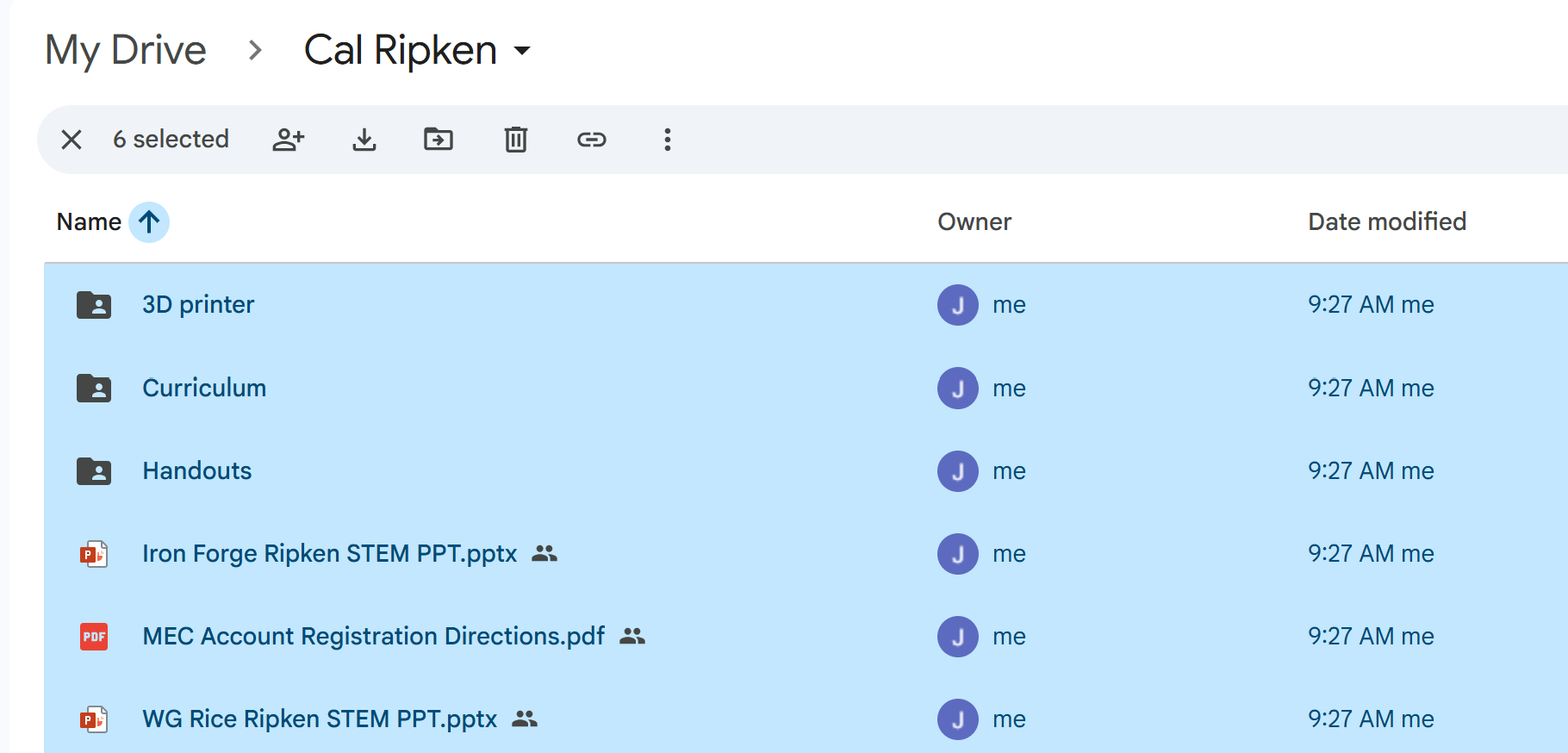
- Share with New User: Click the Share icon and enter the email address of the new owner. Ensure they are set to Editor.
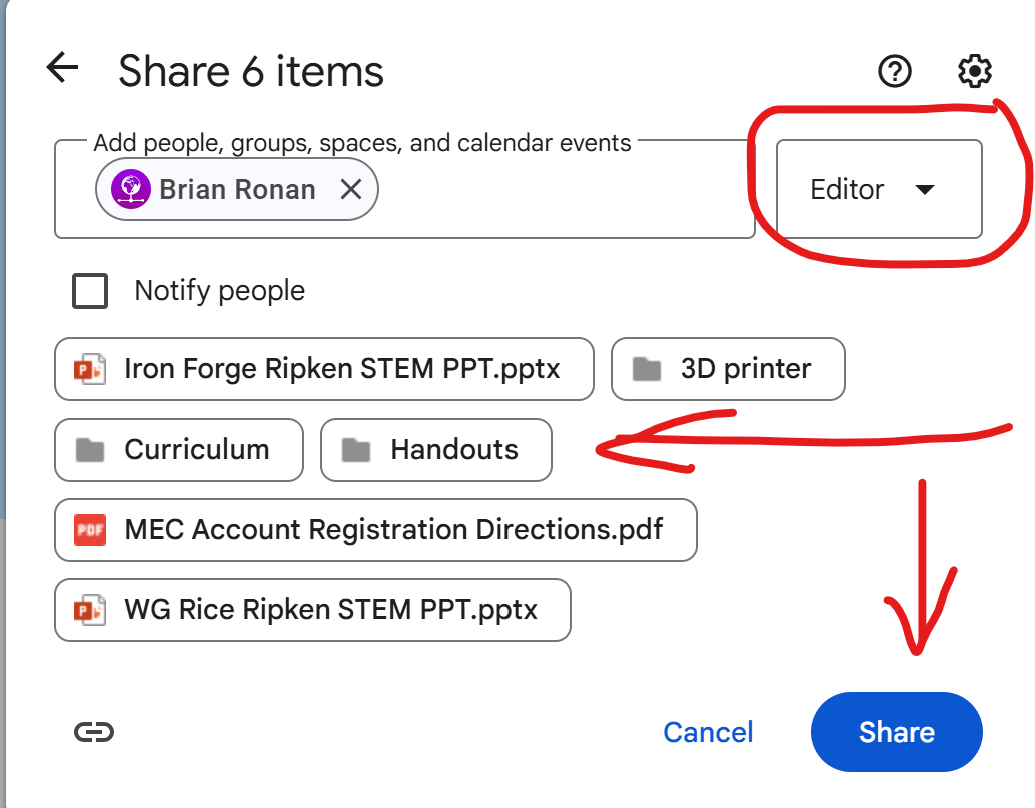
3. Next, Transfer Ownership: Click Share again, click the drop-down menu next to the new owner, and select Transfer ownership.
For OneDrive:
To Transfer Ownership in OneDrive:
- Open a web browser and navigate to your OneDrive file library.
- Right-click the name of the folder you wish to transfer.
- Click Details.
- Click the Manage Access link in the window that appears on the right.
- Click Grant Access.
- In Enter names or email addresses… field, search for the person to whom you want to assign permissions, then click on their name to select it.
- Leave the setting Can Edit.
- Optional: Enter a personal message explaining why you are sharing the folder.
- Click the + for Direct Access.
- The new editor will now see the folder in their own OneDrive file library under the Shared tab on the left-hand menu.
- Ask the new editor to download the contents of your folder and transfer those contents to a new folder that they create within their own OneDrive account.
- If you still need access to these files, ask the new editor to share their new folder with the same people who had access to your folder.
The new owner MUST do step 11 and download the files and then save to their own OneDrive prior to the original owner leaving.