Video: https://app.guidde.com/share/playbooks/qViT4JcKsLLwvjzMLLyWM1
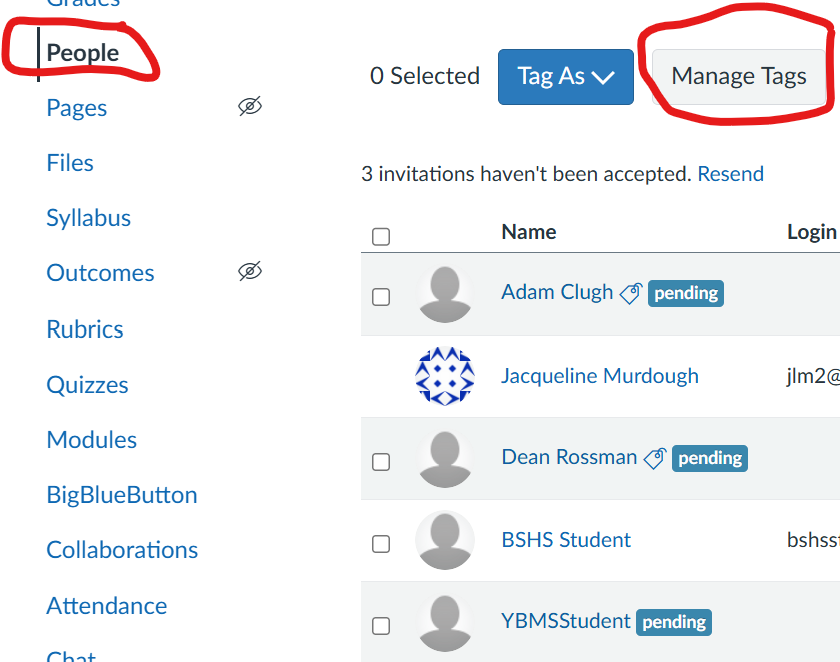
In Course Navigation, click the People link.
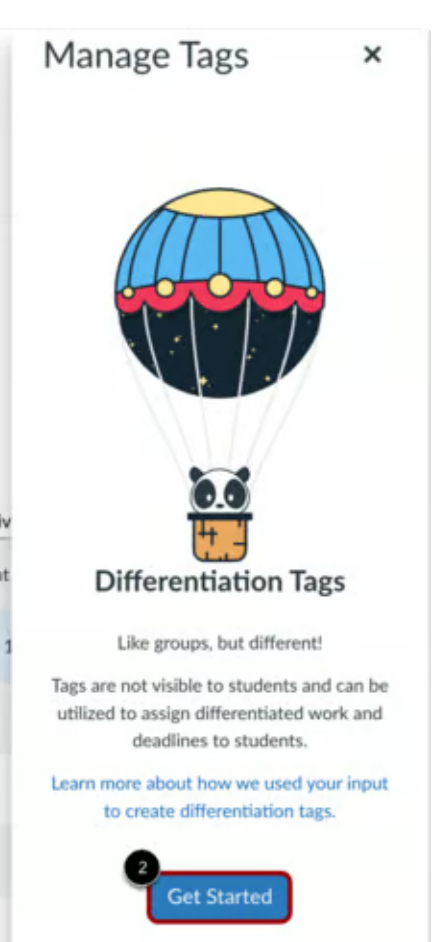
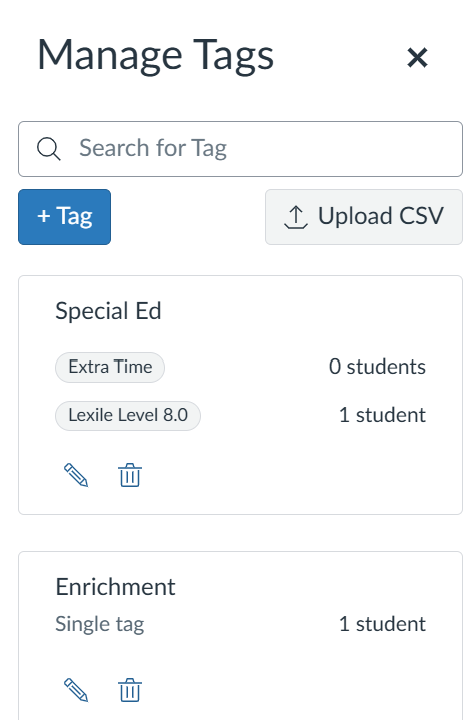
In the People page of a course, click the Manage Tags button. If you have not created tags yet, an introductory message displays in the Manage Tags tray.
To create a tag, click the Get Started button [1].
In the Create Tag window, enter a tag name [1] and a tag set [2]. Then, click the Save button [3].
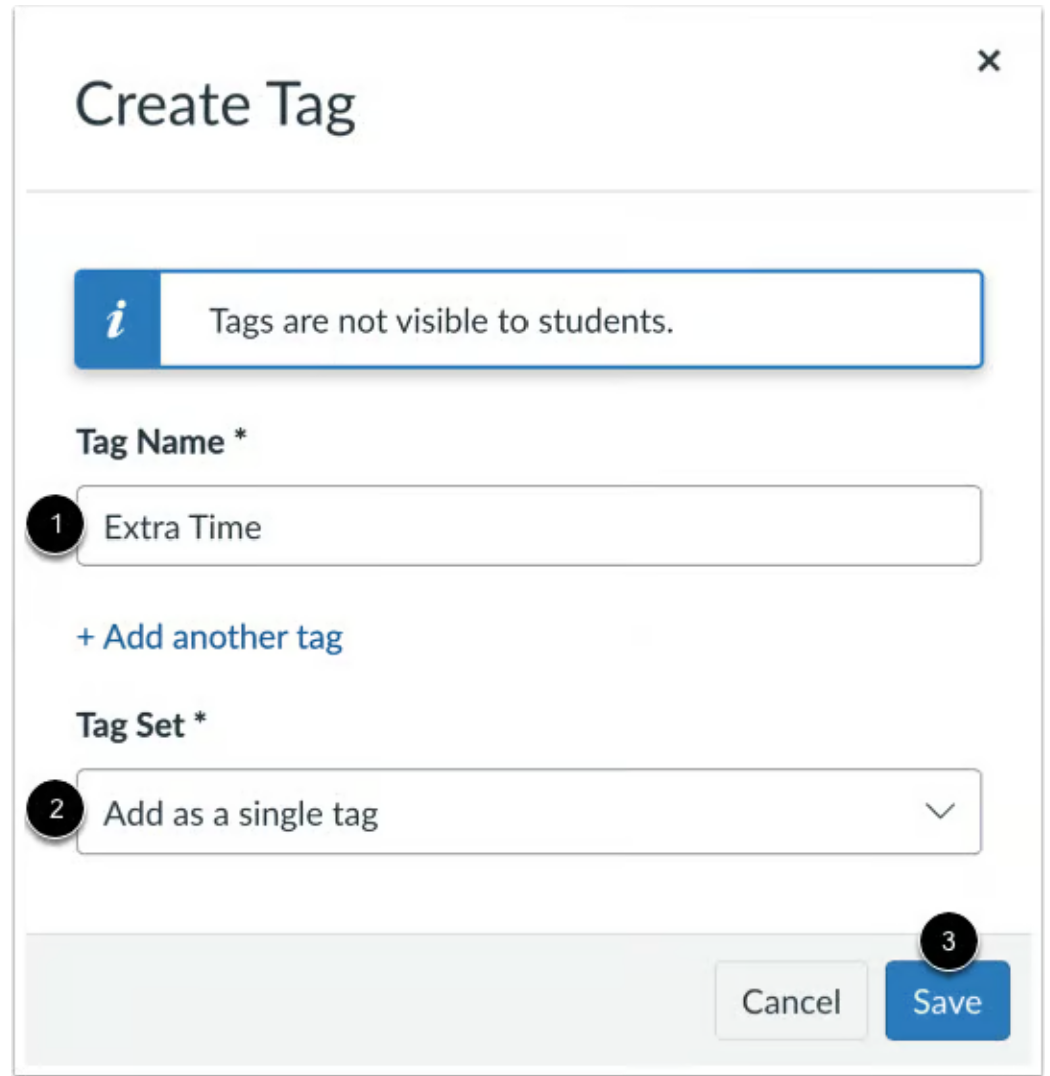
Choose Single Tag if students should belong to only one category in this set (e.g., specific project groups).
Choose Multiple Tags if students may need several attributes from the same set (e.g., various learning accommodations).
Assign Tags to Students
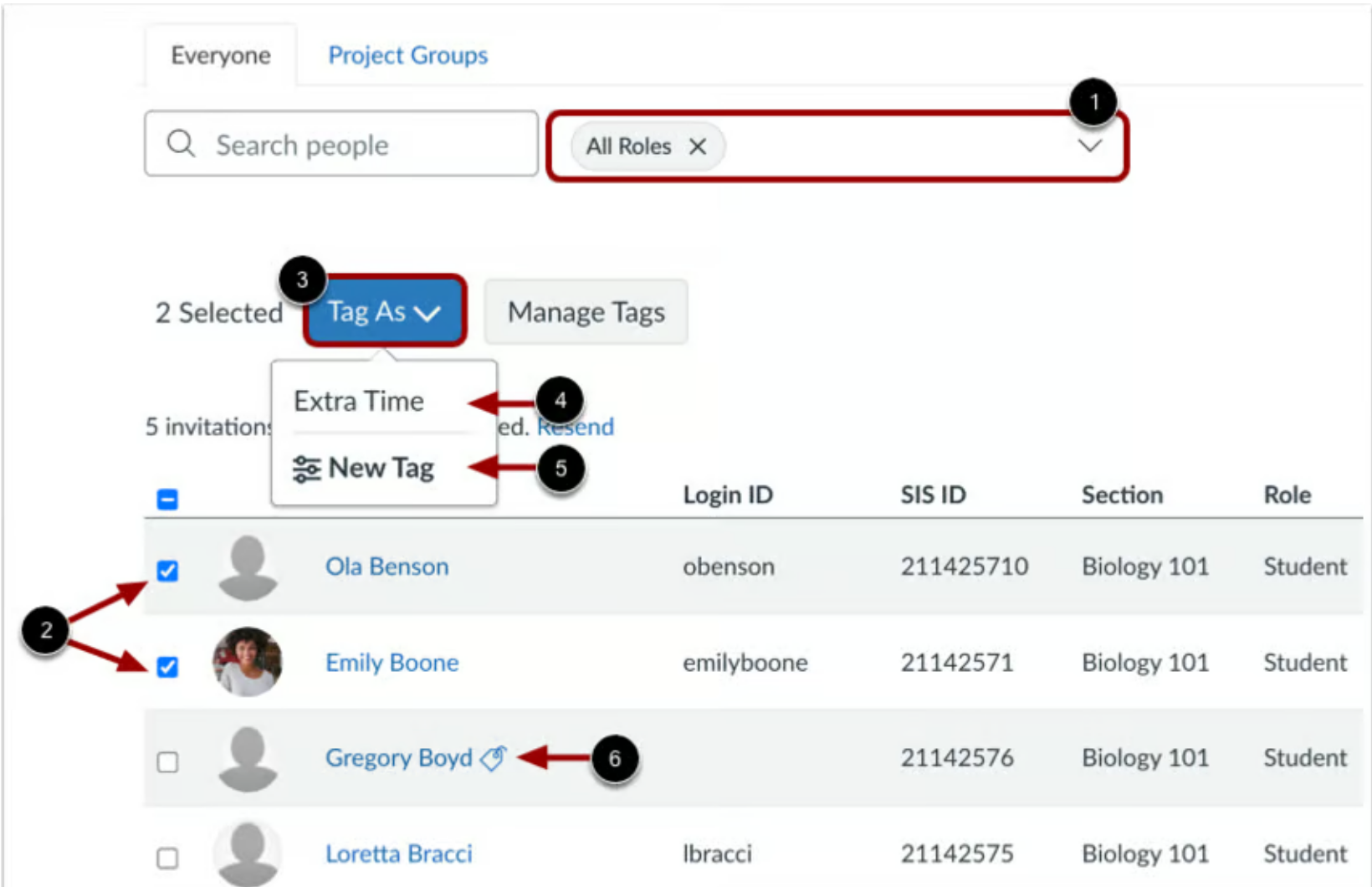
To add tags to students, click the checkbox of the desired student(s) [2]. Then, click the Tag As button [3]. You can either select an existing tag [4] or create a new tag [5].
Once a tag is assigned to a student, a tag icon displays. To view the assigned tags, click the icon [6].
Note: Students can have multiple tags across different sets. If you find you cannot assign more than one tag from a specific set, check the Tag Set settings to ensure it is not restricted to the 'Single Tag' configuration.
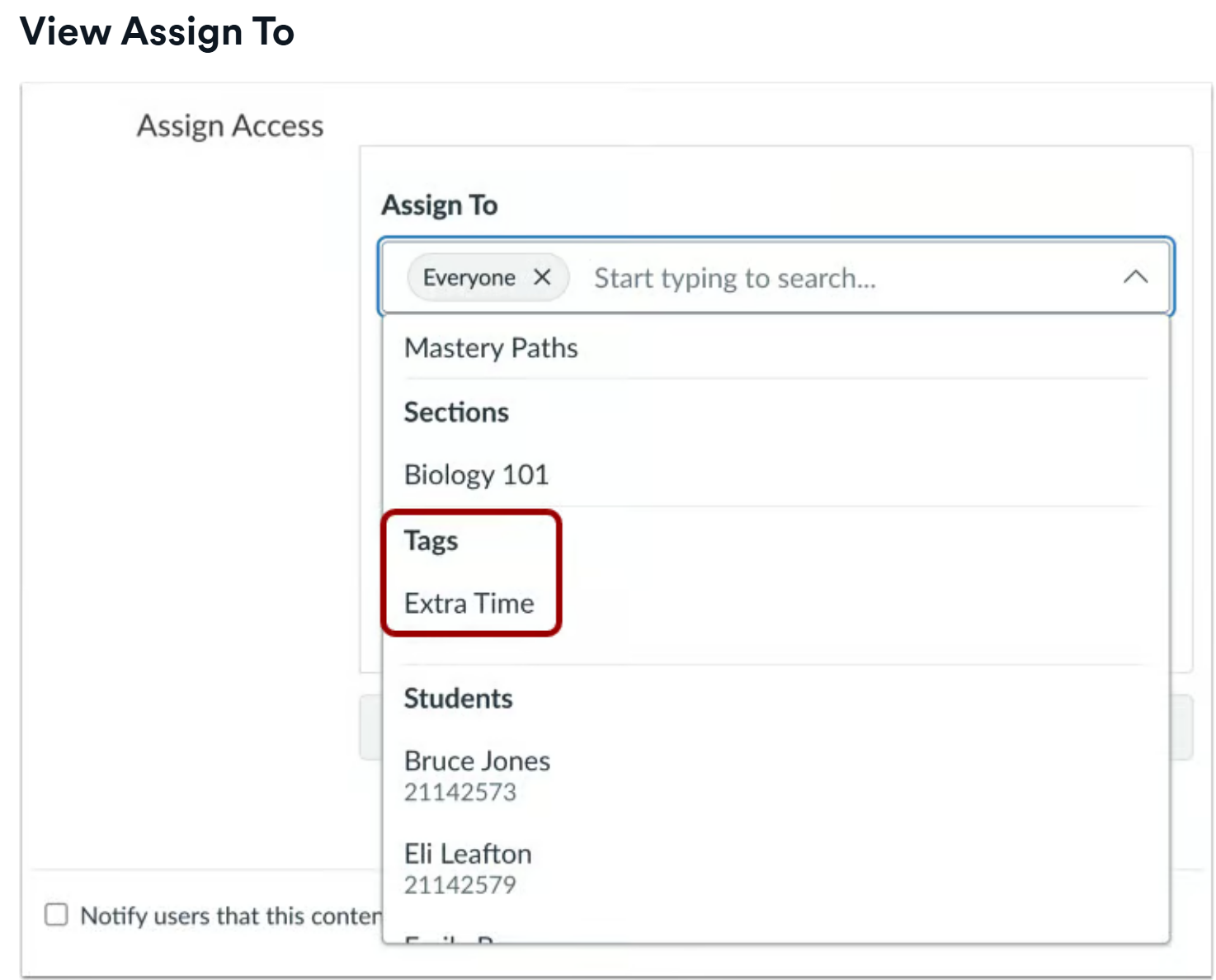
When creating or editing Assignments, Discussions, Quizzes, New Quizzes, or Pages, you can assign items to students with specific tags.
Note: To verify the number of students in a tag group before assigning work, go to the People page and use the Search Student dropdown to filter by tag. The resulting list will show exactly which students will receive the assignment.